
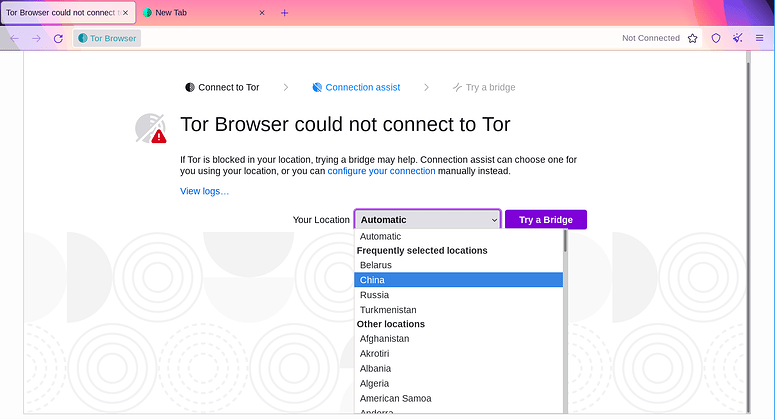
Seeing the green progress bar freeze at "Establishing a Tor circuit" or "Connecting to relay" is one of the most common issues users face in 2026. This usually happens because your ISP is dropping the initial handshake or your network configuration is preventing the browser from finding an entry point. To fix Tor Browser stuck on connecting, you need to identify whether the issue is a simple timeout, a blocked bridge, or a system misconfiguration.
Quick Answer
If Tor Browser is stuck on connecting, immediately click "Configure" in the connection window, select "Use a bridge," and enable Snowflake to bypass the restriction. If that fails, check your system clock to ensure the date and time are accurate, and disconnect any active VPNs, as they often create routing conflicts that freeze Tor's circuit building.
What is the Problem?
When Tor gets stuck, it means the browser is trying to build the first "hop" (the Guard node) but cannot complete the handshake. Tor requires three hops: Guard, Middle, and Exit. If the browser cannot reach the first node, the entire circuit fails, and you are left with a spinning loading bar.
This is often not a bug in the browser itself, but a deliberate action by your network. If you understand how Tor works and the concept of onion routing, you know that the first connection is the most vulnerable. Firewalls and ISPs target this specific entry point to stop you before you even enter the network.
Why This Happens (Structured)
1. Network Filtering
Your ISP or local administrator is actively blocking Tor connections. They detect the handshake signature and drop the packets before the connection can be established. This is the primary reason users get stuck at "Connecting to relay."
2. System Clock Desynchronization
Tor uses strict time-based cryptography to verify that you aren't being victim to a replay attack. If your computer's clock is off by more than a few minutes, Tor will refuse to connect to any node. This often looks like a "connecting" freeze.
3. VPN Conflict
If you are running a VPN in the background, it might be blocking Tor's exit ports or routing the traffic incorrectly. Tor expects to handle the routing itself, and a VPN can interfere with the circuit-building process, causing a hang.
4. Bridge Blacklisting
If you are already using bridges and are stuck, the specific bridge IP addresses you are using have likely been identified and blocked by your firewall. The bridge is technically "online," but your path to it is cut.
How to Fix Stuck Connections
First: Check Your System Clock
Before changing any bridge settings, verify your date and time.
- Why: Tor will not connect if your clock is wrong.
- Fix: Go to your system settings and enable "Set time automatically." Restart the Tor Browser immediately after correcting the clock.
Next: Switch to Bridges
If your clock is correct but Tor is still stuck, the standard entry nodes are being filtered. You need to disguise your traffic.
- Step 1: On the connection screen, click Configure.
- Step 2: Select Tor is censored in my country.
- Step 3: Check the box for Snowflake and click Connect.
- Why: Snowflake uses a different protocol (WebRTC) that standard filters often miss. You can read our detailed guide on obfs4 vs Snowflake vs WebTunnel to understand which protocol fits your specific censorship environment.
Finally: Request Fresh Bridges
If Snowflake doesn't work, your current bridge lines (if manually pasted) are likely stale. You should not use static lines found on forums.
- Fix: In the "Use a bridge" menu, select Request a bridge from tor-project.org. This fetches a fresh, unblocked set of addresses. You can also check our curated list of working Tor bridges for 2026 for additional verified options if the automated request fails.
Connection Progress Bar Analysis
Where exactly the bar stops tells you a lot about the problem.
Stuck at 0% to 10% (Connecting to Relay)
Meaning: The browser cannot find a path to the entry node. Fix: This is a network filtering issue. Enable Snowflake or WebTunnel. If you are using a VPN, try disabling it to see if the connection establishes directly.
Stuck at 40% to 70% (Handshaking)
Meaning: The connection reached the relay but the cryptographic handshake failed. Fix: This is often caused by your System Clock being incorrect, or using a bridge that is currently offline. Request new bridges.
Stuck at 95% to 99% (Building Circuit)
Meaning: The entry worked, but a middle or exit node is down. You are technically "in" the network, but the specific path is broken. Fix: Do not close the browser. Click the "New Tor Circuit for this Site" button in the URL bar. This forces Tor to build a new path without restarting the browser.
Common Problems & Fixes
Problem: Tor connects to localhost but no data loads.
Cause: This is a "half-closed" connection. Tor is running, but your browser is configured to use a proxy that doesn't exist (like a system proxy for a VPN you disconnected). Fix: Go to Tor Browser > Settings > Network. Set the proxy to "No proxy" or "Use system proxy settings" only if you know your system proxy is valid.
Problem: Tor keeps saying "Relay has insufficient resources."
Cause: The specific relay you connected to is overloaded or dead. Fix: This is usually temporary. Wait 30 seconds or click "Retry." If it persists, use the "New Identity" button to pick a different relay.
Problem: Everything works, but sites load extremely slowly.
Cause: You are likely using a bridge with high latency (like a WebTunnel bridge routed through a distant CDN) or a Snowflake proxy on a slow volunteer connection. Fix: Switch from Snowflake/WebTunnel to obfs4 if your region allows it, as it is faster. If you must use Snowflake, toggle it off and on to find a faster volunteer.
Pro Tips
- Don't spam "Retry": If Tor is stuck at 10%, hitting retry 100 times won't help. It will just get you rate-limited by the bridge. Switch the method (e.g., switch from obfs4 to Snowflake) instead of just retrying the same broken method.
- Keep Tor Browser Updated: Stuck connections are often fixed in minor updates. The Tor Project releases new versions that include new bridge fingerprints to defeat the latest censorship. Always download the latest version from the official site.
- Use the Logs: If you are stuck, click the "Tor Browser" menu (the onion icon) and select Tor Network Settings > Advanced. There is a "Copy Log to Clipboard" button. You can paste this into a text editor to see exactly why it failed (e.g., "handshake failed" vs "timeout").
Safety & Best Practices
While troubleshooting, avoid downloading "Tor fix" scripts or random executable files from unverified forums. These are common vectors for malware. Stick to the built-in tools (Moat and the Settings menu).
Once you have a working connection, you can browse normally. If you are looking for forums like Dread, ensure you have the official link for Dread Forum in 2026 or verify it via our Dread Forum listing. For finding content, use reliable tools like the Ahmia search engine and check the Ahmia listing to ensure you are on the correct site. Other tools like Not Evil and Excavator can also help you navigate.
Remember that a stuck connection is frustrating but usually harmless to your privacy. It simply means you aren't accessing the network yet. Once connected, the browser's security features automatically protect you, provided you follow standard safety rules like not downloading untrusted files and not using your real name.
Related Guides
- Why Tor Bridges Stop Working (And How to Fix Them)
- Safe Tor Setup Guide for 2026
- Tor vs VPN: Privacy, Anonymity, and Security
- Dark Web Directory 2026: Safe Access
- Comprehensive Onion Links Directory
FAQ
Why does Tor Browser get stuck at 10% every time? This indicates a network-level block. Your ISP is likely filtering the traffic signature of the default entry nodes. You must enable a bridge (preferably Snowflake or WebTunnel) to bypass this.
Can a VPN fix the "Stuck on Connecting" issue? Yes, but usually by accident. If you connect to a VPN first, your ISP might stop blocking the connection, allowing Tor to connect normally. However, a VPN can also conflict with Tor routing. If you use both, configure Tor to connect through the VPN, or use the VPN only to fetch bridges via email.
Does the "Stuck" issue mean I am being watched? No. Being "stuck" means your connection was blocked or timed out. It means the censor won the battle for that specific handshake, but it does not mean they identified you as a person, only that they blocked a Tor connection attempt.
How do I know if my system clock is the cause? If the Tor log says "Your system clock is wrong" or "Certificate validity check failed," your clock is the issue. Tor requires the clock to be accurate to within a few minutes to work.
Conclusion
Fixing Tor Browser stuck on connecting is almost always about changing how the initial handshake looks. Standard connections fail because they are easily recognized. By checking your clock, removing VPN conflicts, and switching to a protocol like Snowflake or WebTunnel, you can bypass the specific filters causing the hang. Don't stare at the loading bar; change the connection settings to force a new, unblocked path.