


INTRODUCTION
The Tor Browser comes with a simple yet powerful tool known as the "Security Slider." It sits quietly in your browser settings, controlling exactly how much of the modern web you allow into your session. For many users, the default setting is a "set and forget" choice, but understanding the trade-offs between Standard, Safer, and Safest is crucial for maintaining anonymity. In 2026, web technologies have become more aggressive in tracking users, making this slider more important than ever. If you’ve ever wondered why certain sites look broken or how to balance usability with security, this guide explains it all.
QUICK ANSWER
The Tor Security Level setting controls how strict the browser is with JavaScript and HTML5 features.
- Standard: JavaScript is enabled. Easiest to use, but highest risk of fingerprinting and exploits.
- Safer: JavaScript is disabled on HTTP (non-secure) sites, and partially restricted on HTTPS. The best balance for most users.
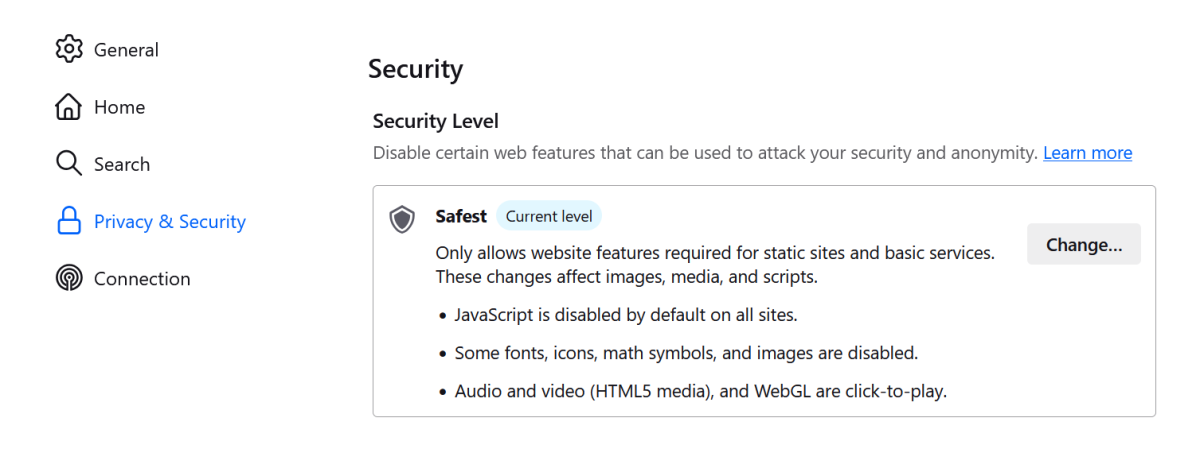
- Safest: JavaScript is completely disabled. Highest security and privacy, but many sites will look broken.
WHAT IS THE TOR SECURITY SLIDER?
The Tor Security Slider is a user interface element that configures the NoScript extension behind the scenes. NoScript is a powerful add-on that decides which scripts are allowed to run on a webpage.
Instead of forcing users to manually configure complex permissions (like allow/allow-temp/deny) for every single website, Tor created three presets. These presets are designed to manage the balance between a "usable web" and a "secure web." It is the first line of defense against browser fingerprinting and zero-day exploits.
WHY THIS HAPPENS (STRUCTURED)
Wrong habits
Many users leave the slider on "Standard" because it is the default. They assume the Tor network alone protects them, forgetting that the browser itself can be the weak link.
Outdated tools/info
Information from 2015 suggests that disabling JavaScript is unnecessary because Tor Browser handles it. In 2026, exploit delivery mechanisms are more sophisticated, and the "Standard" setting is considered dangerous for high-threat users.
Misunderstanding system
Users confuse "HTTPS" with "Safe." While HTTPS encrypts your data in transit, it does not prevent a malicious script inside an HTTPS site from fingerprinting your device or exploiting your browser.
External limitations
Modern web development (React, Vue, Angular) relies heavily on JavaScript. As the clearnet moves toward "Web 2.0," the "Safest" level effectively blocks a larger percentage of the internet today than it did five years ago.
MAIN SEO SECTION: COMPARING THE LEVELS
To make an informed decision, you need to understand exactly what is happening under the hood in each mode.
1. Standard Level
This is the default setting. It is designed to look and behave exactly like a standard Firefox browser.
- JavaScript: Enabled on all sites (HTTP and HTTPS).
- HTML5 Media: Enabled.
- Fonts: Custom fonts allowed.
- Canvas: Enabled.
- Risk Profile: High. If you visit a malicious site, they can run full fingerprinting scripts or attempt to exploit your browser to reveal your real IP address.
2. Safer Level
This setting is designed for the "average" privacy enthusiast. It assumes you are browsing the regular internet or known marketplaces, but still want protection from non-secure sites.
- JavaScript: Disabled on HTTP (non-secure) sites. Enabled on HTTPS sites (but with restrictions).
- HTML5 Media: Click-to-play (disabled until you click it).
- Fonts: Restricted to standard system fonts.
- Canvas: Partially restricted.
- Risk Profile: Medium. You are protected from random HTTP sites, but HTTPS sites can still fingerprint you to some degree.
3. Safest Level
This is the paranoid setting. It is designed for whistleblowers, journalists, and those accessing censored information in high-risk environments.
- JavaScript: Completely disabled on both HTTP and HTTPS sites.
- HTML5 Media: Disabled.
- Fonts: Limited to generic family (e.g., sans-serif).
- Canvas: Disabled.
- Risk Profile: Low. Your browser profile looks nearly identical to every other Tor user in "Safest" mode. However, most modern web apps (Facebook-style markets, chat apps) will not work.
Comparison Table: Standard vs Safer vs Safest
| Feature | Standard | Safer | Safest |
|---|---|---|---|
| JavaScript (HTTP) | Enabled | Disabled | Disabled |
| JavaScript (HTTPS) | Enabled | Enabled (Restricted) | Disabled |
| WebGL / Canvas | Enabled | Disabled | Disabled |
| Audio / Video | Enabled | Click-to-Play | Disabled |
| Web Fonts | Custom | System | Generic |
| Exploit Risk | High | Medium | Minimal |
| Usability | High | Medium | Low |
| Anonymity | Low | Medium | High |
HOW TO FIX / IMPROVE
First: Assess Your Threat Model
Before you touch the slider, ask yourself: "Who am I hiding from?"
- Casual User / Researcher: You are likely safe on "Safer."
- Whistleblower / Target: You must use "Safest."
Next: Start with "Safer"
If you aren't sure, start by moving the slider to Safer. Use the browser for a few days. If you find that too many sites are breaking (forums, markets), you can drop down to "Standard" for those specific sites, but be aware of the risk.
Finally: Learn How to Configure NoScript Manually
If you are stuck on "Safer" for security but one site won't load, you don't have to switch the global slider to "Standard." You can click the "S" icon in the address bar and temporarily allow scripts for just that tab. If you need help with this, our guide on how to disable JavaScript in Tor Browser offers a detailed walkthrough.
COMMON PROBLEMS & FIXES
Problem: "The site is just a white screen."
Fix: You are likely on Safest mode visiting a modern site (like a React market). Click the "S" icon in the toolbar and select "Custom." Find the "Temporarily allow" or "Enable" option to load the page. Alternatively, switch your global setting to "Safer" if you trust the site.
Problem: "Cloudflare keeps checking my browser."
Fix: This is frustrating, but often a good sign. Cloudflare uses JavaScript to fingerprint you. When your security level blocks that fingerprint, Cloudflare gets confused. Simply wait for the CAPTCHA or try a "New Tor Circuit."
Problem: "Marketplace login button doesn't work."
Fix: The login button probably requires JavaScript to validate the input. Verify you are at least on Safer mode. If you are on Safest, you must manually allow scripts for that domain.
Problem: "YouTube videos won't play."
Fix: Tor Browser blocks HTML5 video by default in Safer/Safest modes to prevent canvas fingerprinting. You usually cannot fix this without lowering security, so it is recommended to not use Tor for video streaming.
PRO TIPS
- The "S" Icon is Your Friend: Don't rely on the global slider alone. The "S" in the address bar lets you tweak settings per website. Keep the global setting high, and make exceptions per tab.
- Watch for HTTPS: If you are on "Safer" mode, never log in or enter passwords on an HTTP (non-HTTPS) site. The scripts are disabled, meaning your data is sent in plain text (though Tor still encrypts the connection to the entry node, the exit node can see it).
- Check Fingerprinting: Occasionally visit a fingerprinting test site. If you are on "Safest" and your fingerprint is still unique, check if you are using a custom theme or have resized the window.
- Safest Mode for Archives: When visiting "No JS" onion sites (text wikis, archives), Safest mode is perfect. It makes the text load instantly and cleanly without any tracking scripts.
SAFETY & BEST PRACTICES
The security level is just one piece of the puzzle.
- Don't Mix Levels: Constantly switching between Standard and Safest can make you stand out if your behavior changes drastically.
- HTTPS Everywhere is Built-In: You don't need the old extension. Tor Browser handles it.
- Disable Extensions: Do not install extra privacy extensions. They often have their own bugs and break the "Uniformity" that Tor tries to enforce.
RELATED GUIDES
- How to Disable JavaScript in Tor Browser
- Browser Fingerprinting on Tor
- Can JavaScript Leak Your Real IP Address?
- No JS Onion Sites
FAQ
Q1: Which security level should I use for Darknet Markets?
Safer. Most modern markets require JavaScript for the shopping cart and PGP encryption features to function properly. "Safest" usually breaks them completely.
Q2: Does "Safest" mode make me anonymous?
It makes you more anonymous by making your browser look like everyone else's. However, if you engage in unique behavior (like searching for your real name), you can still be de-anonymized.
Q3: Is "Standard" mode dangerous?
For casual browsing of the clearnet (news, Wikipedia), it is relatively safe. However, if you are visiting the dark web, "Standard" is risky because malicious onion sites are more likely to contain exploits.
Q4: Can I get a virus if I use "Safest" mode?
It is highly unlikely. Most malware relies on JavaScript to run. If JS is disabled, the "payload" cannot be delivered. However, you can still download a file (like a PDF) that contains a virus.
Q5: What does "Custom" mode do?
"Custom" mode lets you manually toggle specific settings (like WebGL, Audio, Fonts) without fully committing to Safer or Safest. It is for advanced users who know exactly what they are doing.
Q6: Why does my screen resolution change in "Safest"?
To prevent fingerprinting, Tor Browser often resizes the window to a standard aspect ratio (e.g., 1000x1000 or a multiple thereof). Don't maximize the window, or you'll create a unique fingerprint.
CONCLUSION
Navigating the Tor Security Levels doesn't have to be complicated. For the vast majority of users in 2026, the Safer setting provides the perfect balance of usability and protection. It shields you from the insecure HTTP web while still allowing you to use modern services. Reserve Safest for text-heavy content and high-risk activities, and avoid Standard whenever possible when accessing the dark web. By understanding these three levels, you take control of your anonymity rather than leaving it to chance.