


How to Download Brave Browser on Windows, Mac, Android & iPhone
Introduction
If you are looking to reclaim your digital privacy without sacrificing speed, knowing how to download Brave Browser correctly is the first step. Whether you are switching from Chrome or setting up a new device, the process varies slightly depending on your operating system. Many users hesitate to switch because they worry about losing bookmarks or dealing with complicated settings. If you are still undecided on which browser to install, you can read our detailed comparison on Brave Browser vs Chrome 2026 to help make your decision. This guide simplifies the installation process for Windows, Mac, Android, and iPhone, ensuring you get the official, safe version of the browser running on your device in minutes.
Quick Answer
The fastest way to download Brave Browser is to visit the official Brave website. The site automatically detects your operating system. Click "Download," run the installer, and follow the on-screen prompts. On mobile, you can find it directly in the Google Play Store or Apple App Store by searching "Brave Browser."
Is Brave Safe to Download?
Before we dive into the steps, it is important to verify the source. Brave is a legitimate, open-source project. However, the internet is full of "modded" versions that claim to offer free crypto or premium features.
Safety Warning:
- Only download from brave.com or official app stores (Play Store/App Store).
- Avoid "Mod APKs" from third-party sites. These often contain malware or spyware designed to steal your wallet keys.
Download & Installation Guide by Device
Since Brave works across all major platforms, here is the specific installation guide for each one.
How to Download Brave Browser on Windows
Brave is fully optimized for Windows 10 and Windows 11.
What it is: The Windows version is the full-featured desktop flagship. It includes the Brave Wallet, Leo AI, and Shields that block ads and trackers. It supports all Chrome extensions.
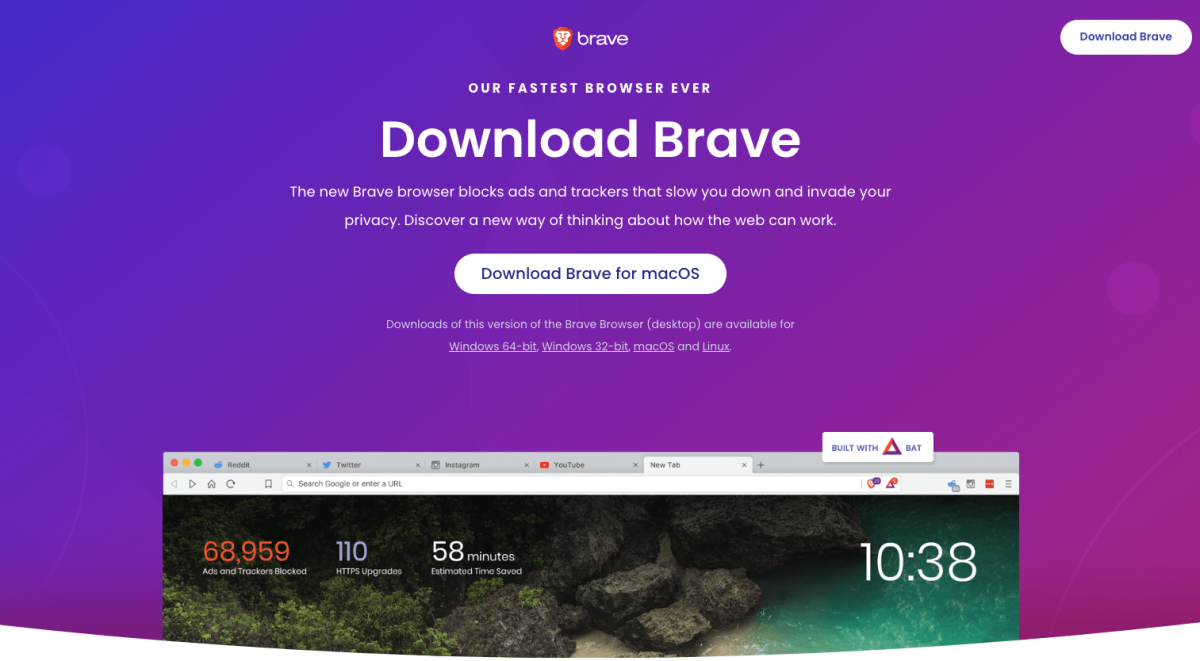
Step 1: Visit the Official Website Navigate to brave.com on your current browser. Click the big "Download Brave" button. The site will detect you are on Windows and download the .exe installer.
Step 2: Run the Installer Once the download is complete, open your "Downloads" folder and double-click BraveBrowserSetup.exe. Windows may ask for permission to make changes—click Yes.
Step 3: Choose Installation Options The installer is lightweight. You will see an option to import settings from Chrome or Edge. Select your current browser to automatically transfer your bookmarks, passwords, and history. This makes the transition seamless.
Step 4: Pin to Taskbar After installation, Brave will open. Click the "Pin to Taskbar" icon in the address bar or right-click the icon in your taskbar to keep it easily accessible.
Strengths: Deep OS integration, extension support, and excellent battery optimization for laptops.
How to Download Brave Browser on Mac
Brave is native to macOS and works seamlessly on both Intel and Apple Silicon (M1/M2/M3) chips.
What it is: The Mac version is designed to be battery-efficient, addressing the historically high battery drain of browsers like Chrome on MacBooks.
Step 1: Download the .dmg File Go to brave.com. Click download. A file named Brave-Browser.dmg will appear in your Downloads folder.
Step 2: Drag and Drop Open the .dmg file. You will see the Brave icon and the "Applications" folder. Click and drag the Brave icon into the Applications folder.
Step 3: Launch the App Open your Applications folder, find Brave, and double-click it. (Note: On first launch, macOS may warn you that the app is "from the internet." Go to System Preferences > Security & Privacy and click Open Anyway to bypass this security check if necessary).
Step 4: Make it Default When prompted, set Brave as your default browser so all links open in it automatically. Import your Safari or Chrome passwords when asked.
Strengths: Significant battery life improvement, native look-and-feel, and native Touch ID support for password autofill.
How to Download Brave Browser on Android
Brave on Android is more than just a browser; it is a comprehensive privacy tool that can block ads inside other apps.
What it is: The Android app includes the "Brave Firewall" (VPN-lite) and background video play.
Step 1: Google Play Store (Recommended) Open the Play Store. Search for "Brave Browser." Look for the icon with the orange lion. Tap Install.
Step 2: APK Download (Advanced) If you are unable to access the Play Store, you can download the APK from the official site. Navigate to brave.com, scroll to Android, and click "Download APK."
- Safety Check: Enable "Install Unknown Apps" only for your browser settings to install the APK, then disable it again.
Step 3: Setup Open the app. You will be greeted by the Welcome screen. Tap "Get Started." You can choose to import bookmarks from Chrome if you were using it previously.
Step 4: Enable Ad Block in Apps One of the best features for Android users is the "Block Ads in Apps" feature. Enable this in the settings to remove ads from free games and apps without needing a separate tool.
Strengths: Blocks in-app ads, YouTube background play (audio continues while screen is off), and fast page loading on mobile data.
How to Download Brave Browser on iPhone (iOS)
Apple's strict rules mean the iOS version is slightly different, but it still offers a massive upgrade in privacy over Safari or Chrome.
What it is: The iOS app focuses on browsing privacy. Due to App Store rules, it cannot block ads inside other apps, but it fully blocks ads within the browser window.
Step 1: Apple App Store Open the App Store. Tap the Search icon and type "Brave Browser." Tap Get or the cloud download icon.
Step 2: Install and Open Once installed, tap the Brave icon to open it. You will be asked to allow Brave to be set as your default browser. Go to Settings > Default Browser App in your iOS settings to select Brave.
Step 3: Private Window Shortcuts On iOS, you can long-press the Brave icon on your home screen to quickly open a "Private Tab" or a "Private Window with Tor" directly.
Step 4: Sync with Desktop If you use Brave on a computer, create a sync chain to transfer your bookmarks and passwords to your iPhone wirelessly.
Strengths: Fingerprint blocking, private Tor tabs, and streamlined performance that runs smoothly on older iPhones.
Common Problems & Fixes
Problem: "Windows blocks the installation."
Explanation: SmartScreen might flag the browser because it doesn't recognize the file. Fix: Click "More info" on the warning screen, then click "Run anyway." The browser is safe.
Problem: "Android says 'Parse Error' when installing APK."
Explanation: The APK download was incomplete or corrupted. Fix: Delete the file and download it again. Ensure you are downloading the version that matches your phone's architecture (ARM, x86), though the site usually handles this automatically.
Problem: "Mac can't verify the developer."
Explanation: This is standard macOS security for new apps. Fix: Open System Settings. Navigate to Privacy & Security. Look for the message "Brave Browser was blocked..." and click Open Anyway.
Problem: "Brave won't import my Chrome passwords."
Explanation: Some password managers in Chrome can conflict with Brave's importer. Fix: Export your passwords to a CSV file from Chrome, then import that CSV into Brave's Password Manager manually.
Pro Tips
- Enable Shields Everywhere: Ensure your Shields are set to "Aggressive" or "Standard" on all devices. This is the main reason to download Brave.
- Use Split View (Desktop): Right-click a link in Brave and select "Open in Split View." This allows you to view two sites side-by-side, great for research.
- Customize the Toolbar: Remove the "Wallet" button from the address bar if you don't use crypto. This simplifies the interface significantly.
Safety & Best Practices
Always ensure you are on the official brave.com site. Scammers often create fake pages with slightly misspelled URLs. Once downloaded, take a moment to enable the "Brave Firewall" in settings to hide your IP address and block trackers at the network level. If you are downloading on Android, stick to the Play Store unless you have a specific technical need for the APK.
Related Guides
- Brave Browser Review 2026
- Best Privacy Settings for Brave
- How to Install Tor on Android
FAQ
Is Brave Browser completely free to download? Yes, Brave is 100% free to download and use on all platforms. There are no premium fees.
Does Brave work on Windows 10? Yes, Brave works perfectly on Windows 10 and the latest Windows 11 updates.
Can I download Brave on iPhone and iPad? Yes, the app is available on the App Store for all iOS devices.
Is the Brave APK safe to install? Only if downloaded from the official Brave website. Avoid "Modded" APKs found on forums, as they may contain malware.
Will Brave slow down my Android phone? No, Brave is lighter than Chrome because it blocks ads. It often improves speed and saves data.
Can I import my data from Safari to Brave? Yes. During the initial setup or via the Settings menu, you can import bookmarks and passwords from Safari, Chrome, Edge, or Firefox.
Does Brave on iPhone block YouTube ads? Yes, Brave blocks YouTube ads within the browser window on iOS, just like on desktop.
Conclusion
Downloading Brave Browser on Windows, Mac, Android, or iPhone is a straightforward process that takes less than five minutes. By switching to an official, privacy-focused browser, you immediately stop hundreds of trackers from following your daily activities. Follow the steps above for your specific device, import your data, and enjoy a faster, cleaner internet experience.