
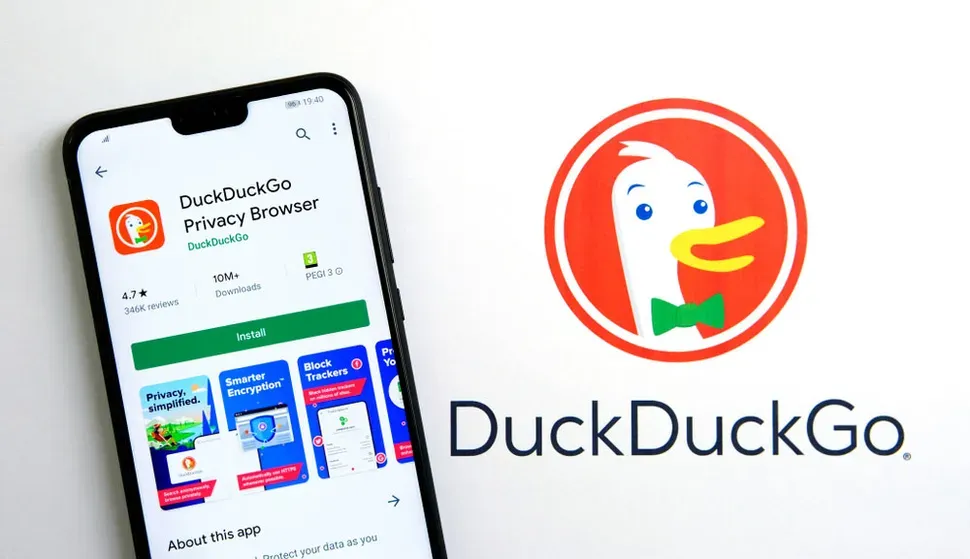
Did you know that most popular browsers collect your browsing history, search queries, and site interactions to serve personalized advertisements? Standard browsers are primarily designed to facilitate data collection for ad networks, not to protect your digital footprint.
In 2026, managing this data collection requires active choices. You are not alone if you want to stop targeted ads and keep your search history private. In this guide, you will learn exactly how to download the DuckDuckGo browser across all your devices, how it compares to mainstream options, and why it is a strong choice for everyday privacy.
Quick Answer
To download the DuckDuckGo browser, visit the official website (duckduckgo.com/browser) or your device's app store (Apple App Store or Google Play Store) and click the install button. It is a safe, fast browser that blocks trackers by default and is definitely worth using if you want to stop targeted ads and data collection without sacrificing browsing speed.
What is the DuckDuckGo Browser?
The DuckDuckGo browser is a dedicated application for your computer or phone that keeps your internet activity private. Compared to other apps that try to learn your habits—like Google Chrome or Microsoft Edge—this browser actively blocks tracking scripts from loading as you navigate the web.
It is important to distinguish the browser from the search engine. The DuckDuckGo search engine is a website you visit to type in queries. The DuckDuckGo browser is a standalone application that wraps around your entire web experience. It uses the DuckDuckGo search engine by default, but it also includes built-in tracker blocking, encryption enforcement, and a one-click data-clearing mechanism.
People use this browser because it is simple and does not require you to be a tech expert. It handles all the difficult privacy settings automatically. To understand the core mechanics of the search engine that powers this browser, you can read our full DuckDuckGo search engine review 2026.
Key Features of the Browser
- Tracker Blocking: Automatically blocks hidden trackers from loading on websites, preventing companies from building a profile on you.
- Smarter Encryption: Forces sites to use encrypted (HTTPS) connections where possible, protecting your data from interception on public networks.
- Duck Player: A built-in YouTube player that prevents Google from tracking the videos you watch.
- Email Protection: A free email alias service (@duck.com) that strips trackers from your incoming mail before they reach your real inbox.
Is DuckDuckGo Free?
Yes, DuckDuckGo is 100% free to download and use.
A common question is how the company makes money if they don't sell user data. DuckDuckGo operates on a privacy-respecting advertising model. When you search for a keyword, the search engine displays contextual ads based solely on that specific keyword. For example, if you search for "coffee makers," you will see an ad for coffee makers. Once you close the tab, that data is gone—the ad does not follow you to other websites. The browser itself costs nothing and does not feature premium tiers or locked features.
DuckDuckGo Browser vs. The Competition
To truly understand the value of the DuckDuckGo browser, it helps to see how it stacks up against other major players.
| Feature | DuckDuckGo Browser | Google Chrome | Brave Browser | Apple Safari |
|---|---|---|---|---|
| Default Search | DuckDuckGo (Private) | Google (Tracking) | Brave Search / User Choice | Google / User Choice |
| Tracker Blocking | Automatic & Aggressive | None (requires extensions) | Automatic & Aggressive | Automatic (Moderate) |
| Privacy Level | High (Stops ad tracking) | Very Low (Data harvesting) | High (Stops ad tracking) | Medium (Apple ecosystem) |
| Speed | Fast | Very Fast | Very Fast | Fast |
| Best For | Casual privacy users | Google ecosystem users | Advanced privacy users | Apple device users |
| Cost | Free | Free | Free | Built-in (Apple) |
DuckDuckGo vs. Chrome Privacy Comparison (Simple)
When comparing DuckDuckGo vs Chrome privacy, the differences come down to their core business models:
- Google Chrome: Chrome is built by the world's largest advertising company. It is designed to log your search history, track your location, and monitor how you interact with websites to feed data into your Google profile. Even in "Incognito" mode, Google still collects your data; it simply doesn't save it to your local device history.
- DuckDuckGo: DuckDuckGo is built to prevent tracking. It does not save your search history, blocks third-party cookies by default, and stops hidden tracking scripts from loading. It treats you as a new visitor on every website you visit.
For a deeper statistical breakdown of how these two giants handle your data, read our complete DuckDuckGo vs Google privacy 2026 guide.
5 Common DuckDuckGo Browser Mistakes & How to Fix Them
Even with an excellent privacy tool, user error can compromise your experience. Here are the most common mistakes people make when using the DuckDuckGo browser.
1 - Expecting It to Hide Your IP Address
DuckDuckGo is fantastic for everyday privacy, but it does not hide your IP address from the websites you visit or your internet service provider. Websites can still see your general geographical location.
The Fix: Understand that a private browser stops corporate tracking, but it does not mask your network location. If you need to hide your IP address, you must pair the browser with a reliable, no-log VPN.
2 - Forgetting the Fire Button
The browser features a "Fire" icon in the toolbar that burns your recent history, tabs, and data instantly. Many users never click it, leaving their session data accessible if someone else uses their device.
The Fix: Make tapping the Fire button a habit at the end of every browsing session. It takes one second and instantly wipes the slate clean.
3 - Assuming It Blocks All Ads
DuckDuckGo blocks invasive trackers and the targeted ads that follow you around the internet. However, it does not block all standard, static ads on websites by default.
The Fix: Understand that seeing basic, non-targeted ads is the trade-off for using a free, privacy-respecting service. If you want zero ads, you will need to adjust the browser's built-in blocking settings or use a dedicated ad-blocker extension.
4 - Not Using the Email Protection
DuckDuckGo offers a free service to strip trackers from your emails, but many individuals skip this setup during onboarding, leaving their inbox vulnerable to invisible tracking pixels.
The Fix: Activate the @duck.com email alias in the browser settings. When you sign up for a newsletter or service, use your Duck address. DuckDuckGo will strip the trackers and forward the clean email to your real inbox.
5 - Logging Into Google Accounts Inside It
Some expect the DuckDuckGo browser to seamlessly sync with their Google accounts (like Chrome does with Gmail, Docs, and Calendar). Logging into Google inside a privacy browser defeats the purpose, as Google will immediately start tracking your session again.
The Fix: Use the built-in DuckPlayer to watch YouTube videos without targeted ads. If you must use Google services, do so in a separate, dedicated browser to compartmentalize your data.
How to Download DuckDuckGo Browser (Step-by-Step by Device)
Downloading and setting up the DuckDuckGo browser is incredibly straightforward. Here is how to do it safely on your specific device.
DuckDuckGo Download for PC (Windows & Mac)
- Visit the Official Source: Go to duckduckgo.com/browser on your current browser.
- Download the Installer: Click the download button for Windows or macOS.
- Run the Installer: Open the downloaded file and follow the standard installation prompts.
- Set as Default: Once installed, the app will ask if you want to make it your primary browser. Choose "Yes" to ensure all links you click open privately by default.
- Import Bookmarks: Use the built-in import tool to bring your bookmarks over from Chrome, Safari, or Edge.
⚠️ Warning: Only download the desktop application from the official duckduckgo.com domain. Avoid third-party software repositories that might bundle the installer with malware.
DuckDuckGo Download for Android
- Open the Play Store: Launch the Google Play Store on your Android device.
- Search: Type "DuckDuckGo Private Browser" into the search bar.
- Install: Find the app published by DuckDuckGo and tap "Install."
- Set Default: Go to your Android Settings > Apps > Default Apps > Browser App, and select DuckDuckGo.
⚠️ Warning: Never download a "DuckDuckGo APK" from a third-party website. These unofficial files are frequently modified to contain spyware. Always use the official Google Play Store.
DuckDuckGo Download for iPhone (iOS)
- Open the App Store: Launch the Apple App Store on your iPhone or iPad.
- Search: Type "DuckDuckGo Private Browser" into the search bar.
- Install: Find the app and tap "Get" or the download icon.
- Set Default: Go to your iPhone Settings > scroll down to DuckDuckGo > Default Browser App > Select DuckDuckGo.
Safety & Best Practices
Is the DuckDuckGo browser safe? Yes. It is one of the most secure choices for regular web surfing. However, you should still practice smart digital habits:
- Keep Software Updated: Always install the latest browser updates to patch security vulnerabilities.
- Avoid Suspicious Downloads: No browser can protect you if you willingly download malicious files. Only download attachments from trusted sources.
- Review Permissions: Pay attention when websites ask for access to your microphone, camera, or location. DuckDuckGo will alert you to these requests—deny them unless absolutely necessary.
Remember that no single tool makes you invisible. While DuckDuckGo is excellent for blocking trackers and ads, it is just one part of a general privacy plan. Use it to stay away from the data-hungry eyes of advertisers and enjoy a cleaner, faster internet experience.
FAQ: Downloading & Using DuckDuckGo
Q1 - Is DuckDuckGo browser owned by Google? No. DuckDuckGo is a completely independent company. They do not share your data with Google or any other advertising firms.
Q2 - Can I use DuckDuckGo browser on my Mac besides PC? Yes. The browser is available for Windows, macOS, Android, and iOS. You can download it on almost any modern device to keep your browsing habits private across all your screens.
Q3 - Does DuckDuckGo browser block all ads? It blocks most invasive trackers and the targeted ads that follow you around. While you might see some basic ads in search results, they are not based on your personal history or identity—they are strictly contextual.
Q4 - Is it better than Chrome's Incognito mode? Yes. Incognito mode only hides your history from people using your physical computer. DuckDuckGo actually stops the websites themselves from tracking you across the internet. For a full breakdown, see our DuckDuckGo vs Google privacy comparison.
Q5 - Is DuckDuckGo free to use? Yes. The browser and all its core features—including tracker blocking, DuckPlayer, and Email Protection—are entirely free. They make money through private, contextual search ads.
Q6 - How do I import my Chrome bookmarks to DuckDuckGo? During the initial setup on the desktop browser, DuckDuckGo will prompt you to import bookmarks and passwords directly from Chrome, Safari, or Firefox. You can also do this later via the browser settings menu.
Q7 - Does DuckDuckGo sell my data? No. Their business model relies on contextual advertising. They do not build profiles on you to sell to data brokers.
Conclusion
Browsing the web does not have to mean giving up your personal information. By choosing the DuckDuckGo browser, you take a massive step toward reclaiming your digital life. It is a simple, effective, and safe tool that works right out of the box—blocking hidden trackers, forcing encryption, and keeping your search history yours.
Whether you download it for PC, Android, or iPhone, it provides a seamless, private alternative to data-hungry default browsers. Download it today, hit the Fire button, and see how much better the web feels when you aren't being tracked.